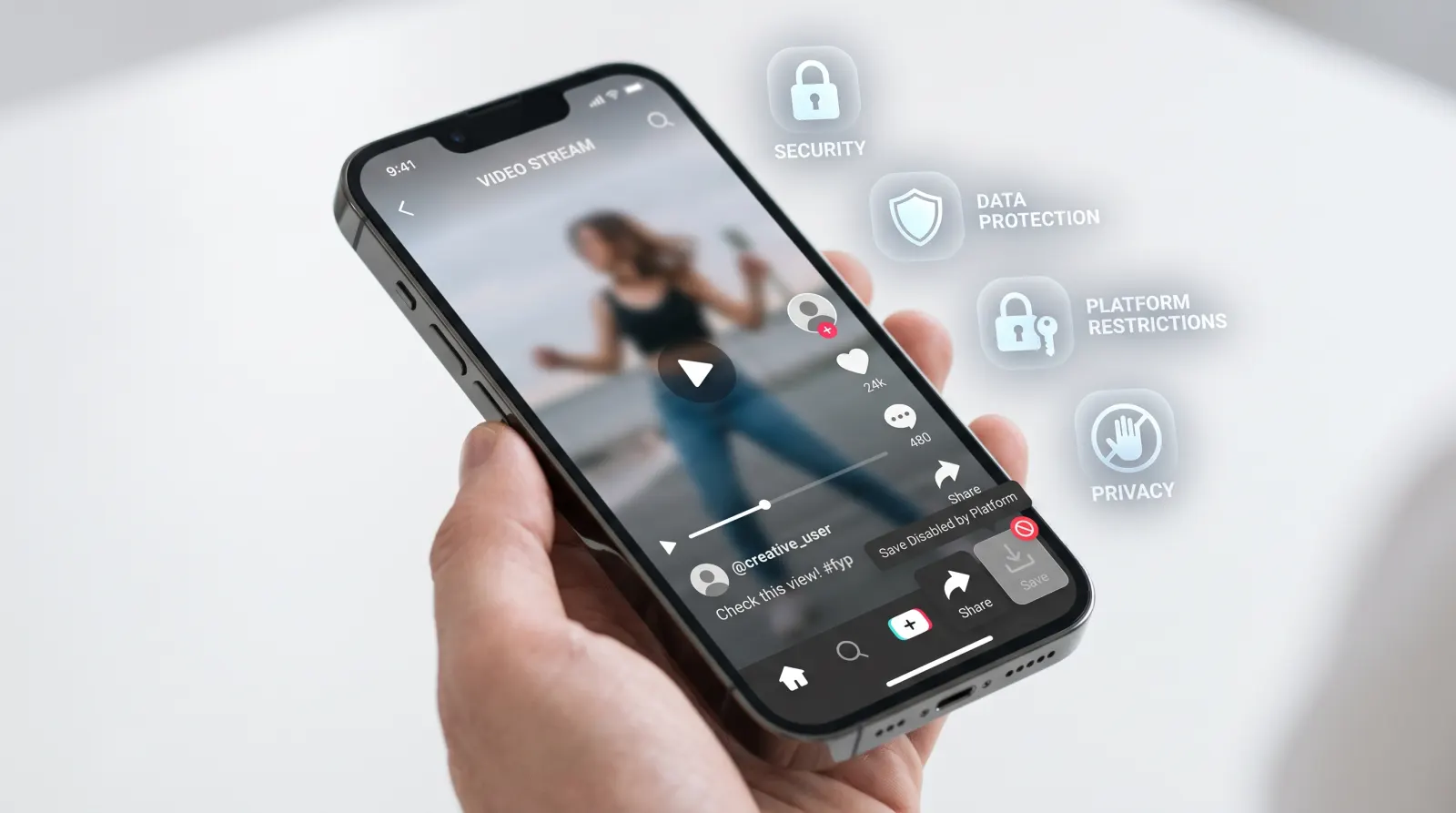
You find a Kwai video you actually want to keep. Maybe it's a recipe you'll lose track of by tomorrow, a dance you want to practice, or a clip a friend sent you that deserves better than living inside a chat thread forever. You tap and hold. You look for a save button. Nothing happens the way it does on other apps.
That's not a glitch. iPhone and Kwai were never really built to make this easy, and there's a simple workaround that doesn't involve downloading yet another app just to save a ten-second video.
Table of Contents
Why Kwai Won't Let You Save Videos Directly
Kwai, like most short-video platforms, restricts direct downloads for a mix of reasons that have nothing to do with you personally.
Creators often don't want their content re-uploaded elsewhere without credit, so platforms limit the built-in save option to protect that. iOS adds its own layer on top: Safari and most apps can't just write files to your Camera Roll without you explicitly triggering it, which is part of how Apple locks down what apps are allowed to touch on your phone.
Put those two things together and you get the situation you're in now — a video you want, and no obvious "download" button in sight.
The Screen Recording Trap (And Why It's Not Worth It)
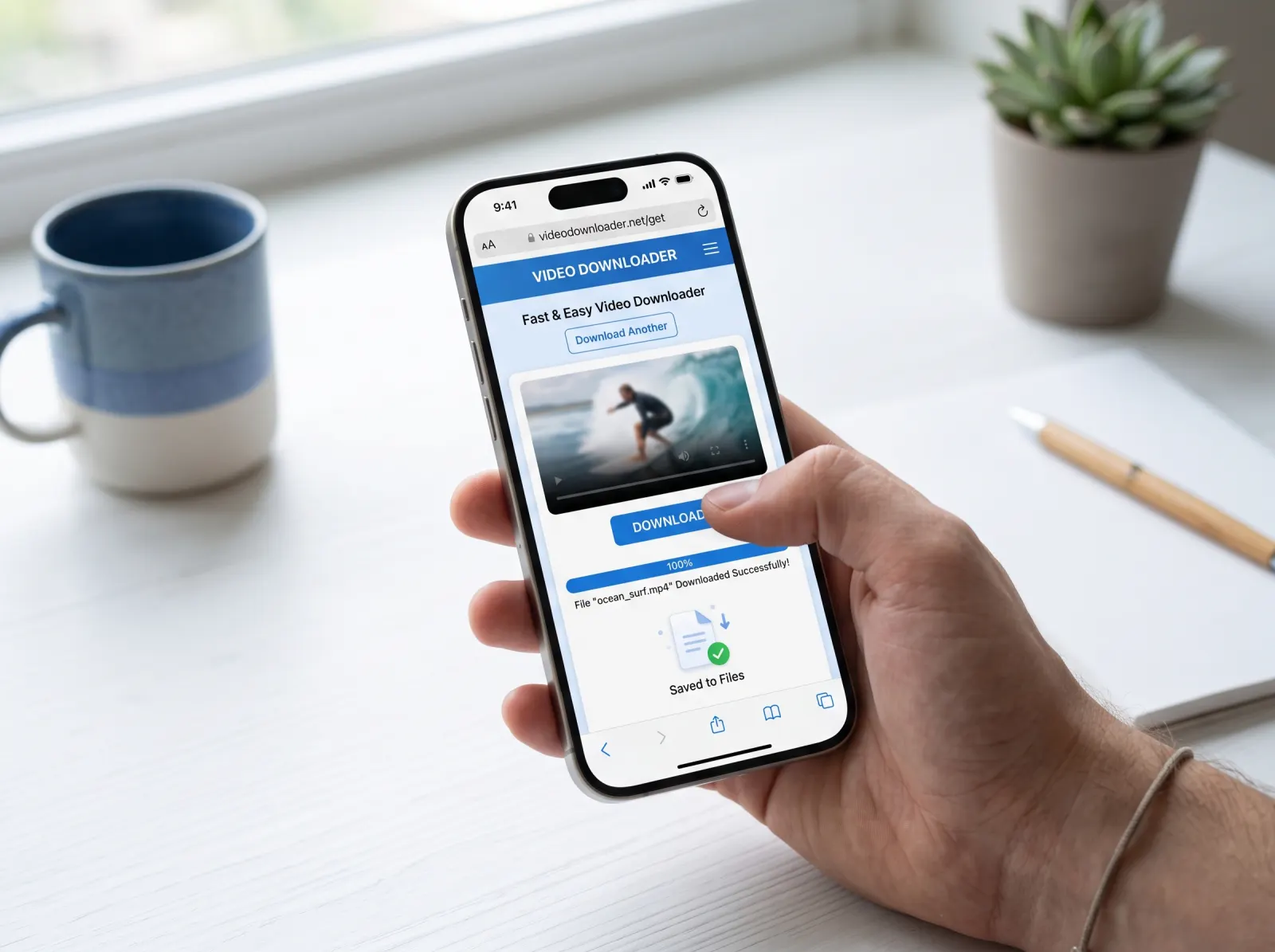
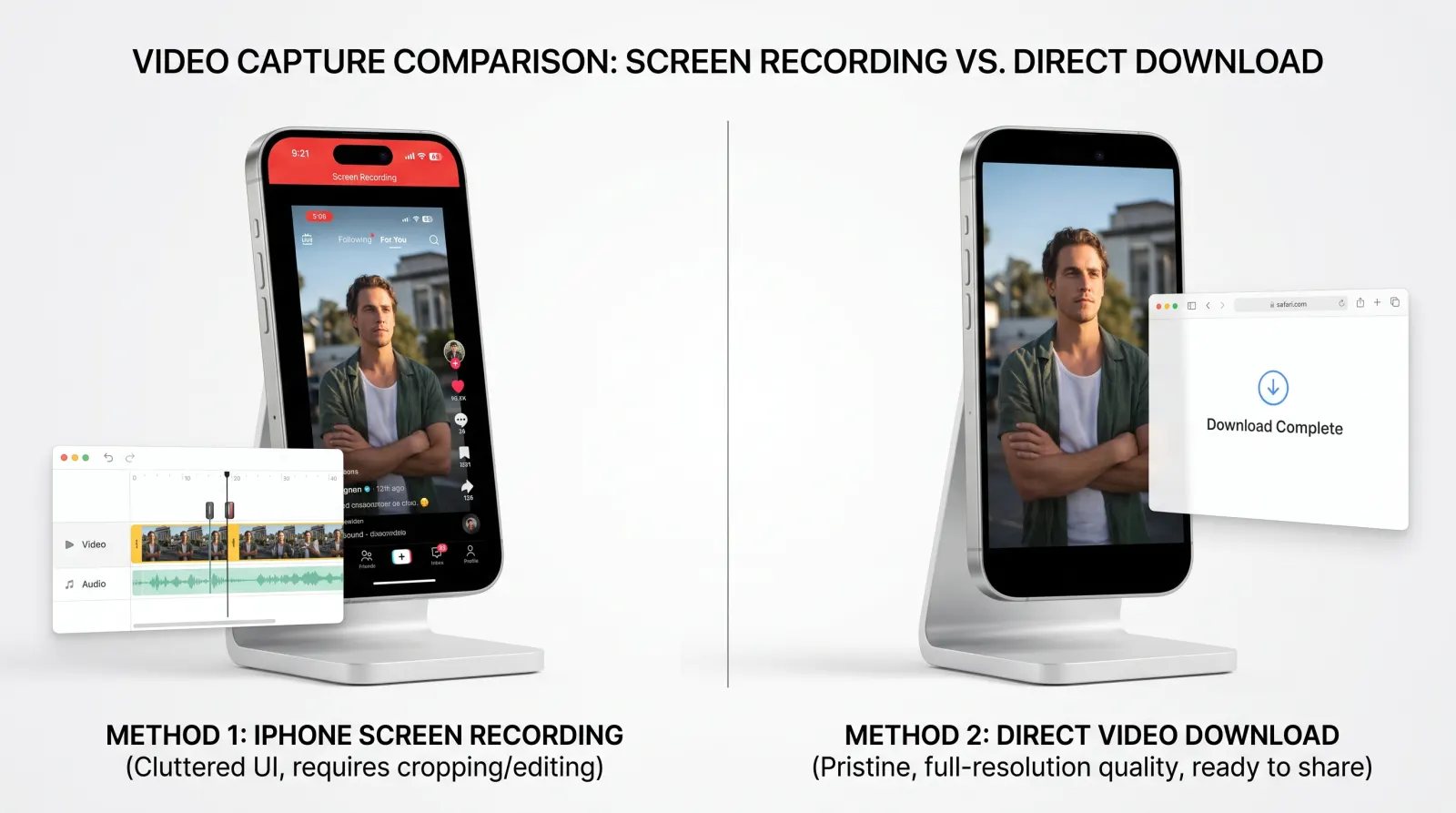
A lot of people default to screen recording. It works, technically. It's also the worst version of "working."
You lose quality. You pick up your phone's status bar, notifications, and whatever else happens to pop up mid-recording. You have to trim the start and end manually. And if the video had captions burned in near the edge of the screen, there's a decent chance you'll crop part of them off without noticing until later.
There's a cleaner way, and it takes less time than setting up a screen recording in the first place.
Step-by-Step: Download Kwai Videos on iPhone Without an App
- Open Kwai and find the video. Tap the share icon (usually an arrow or three dots depending on your app version).
- Copy the link. Kwai gives you a "Copy Link" option in the share menu — tap it. This puts the video's URL on your clipboard.
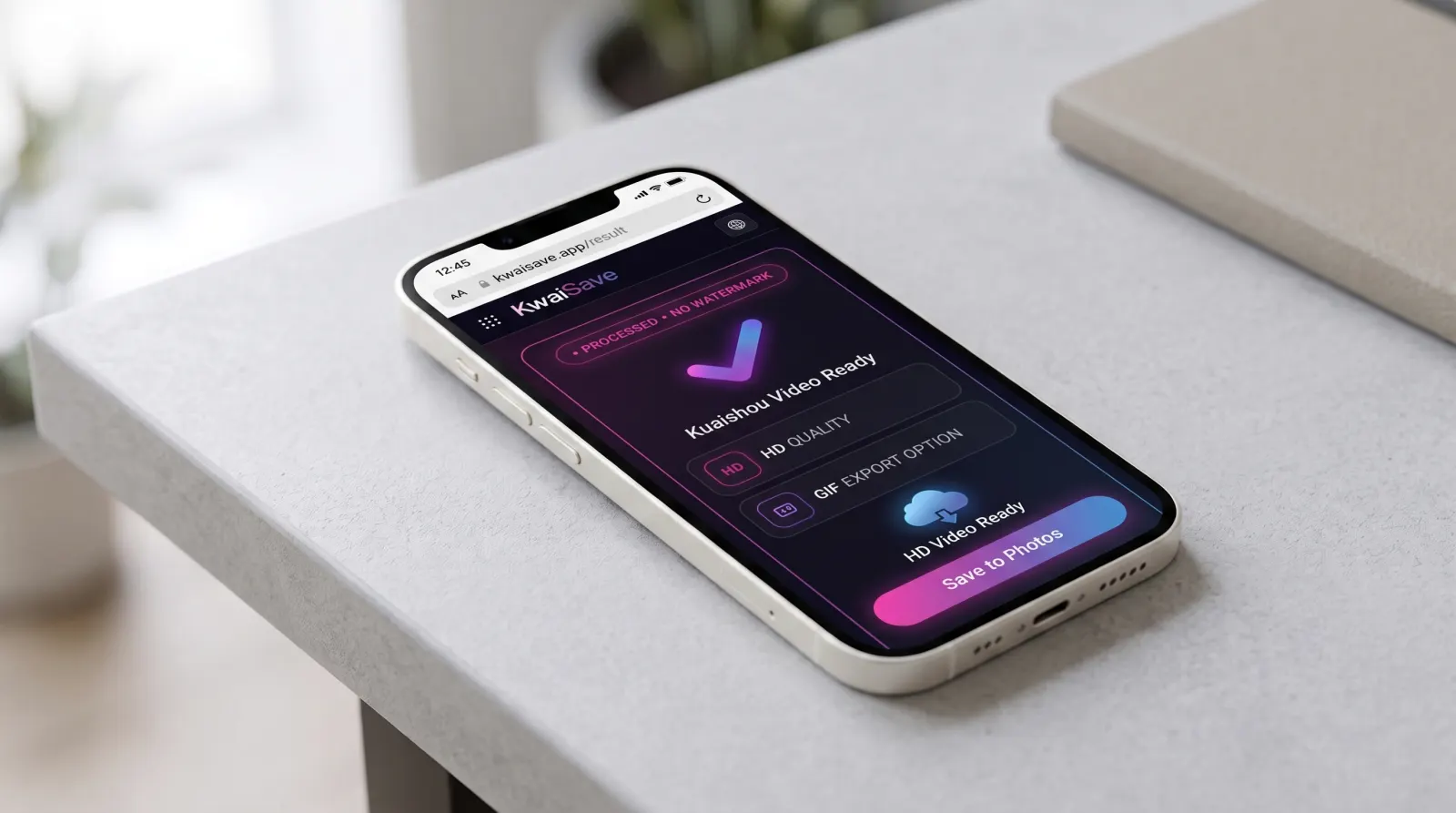
- Open Safari and go to kwaisave.com. This runs entirely in your browser, so there's nothing to install, no account to create, and no storage taken up on your phone.
- Paste the link into the box on the page. Long-press the field and choose Paste, or tap the paste icon if the site detects your clipboard automatically.
- Tap download. The tool pulls the video without the watermark overlay Kwai adds by default in most cases, and gives you a direct download option.
- Save it to your Camera Roll. iPhone will prompt you to save the file — tap "Save Video," and it lands in Photos like anything else you'd shot yourself.
That's the whole process. No app store visit, no permissions to grant beyond the one-time save prompt Safari already handles for you.
Common Mistakes That Trip People Up
Copying the wrong thing. If you copy the video's caption text instead of the actual share link, the tool won't have anything to work with. Double-check you tapped "Copy Link," not "Copy Caption" or similar.
Trying it on a private or removed video. If the original creator deleted the clip or set their account to private after you saved the link, there's nothing left to pull — the tool can only fetch what's still live.
Assuming a pop-up is part of the process. Ad blockers exist for a reason. If you land on a page with unexpected pop-ups asking you to "allow notifications" or install something, that's not the download working — close it and make sure you're on the actual site, not a lookalike.
Not checking your storage first. Longer videos add up. If your Photos app is already near full, the save will fail silently or prompt you to free up space — worth a quick check before you start.
What Most People Overlook
A few things worth knowing that don't come up until they matter:
- Watermark removal isn't guaranteed on every clip. Some creators embed their own watermark directly into the video file itself, separate from Kwai's app overlay. A downloader tool can strip Kwai's added watermark, but not one baked into the original footage.
- Quality depends on the source, not the tool. If the original upload was compressed or low-resolution, downloading it won't magically restore detail that was never there.
- This is meant for personal use, not redistribution. Downloading a video to rewatch offline or share privately is different from reposting someone else's content as your own elsewhere. If you plan to reuse a clip publicly, it's worth checking in with the original creator first — plenty are happy to be credited, and it avoids any headache later.
- iOS Shortcuts can speed this up further. If you find yourself doing this often, a custom Shortcut that grabs your clipboard and opens the download page automatically shaves the process down to two taps instead of six.

FAQ
Download Kwai Videos with KwaiSave
You don't need another app taking up space on your phone just to keep a video you liked. Paste the link into KwaiSave and save it straight to your Camera Roll — no app install, no login.
Open Free Downloader →Related reading: our full download guide covers Android and PC too; if you're on a computer instead, see our PC and Mac guide.
About the Author: Mehtab Ahmed
Mehtab Ahmed is the founder of KwaiSave and a web developer with 6+ years of experience building browser-based media tools. Based in Lahore, Pakistan, he writes about social media platforms, content creation, and digital tools.