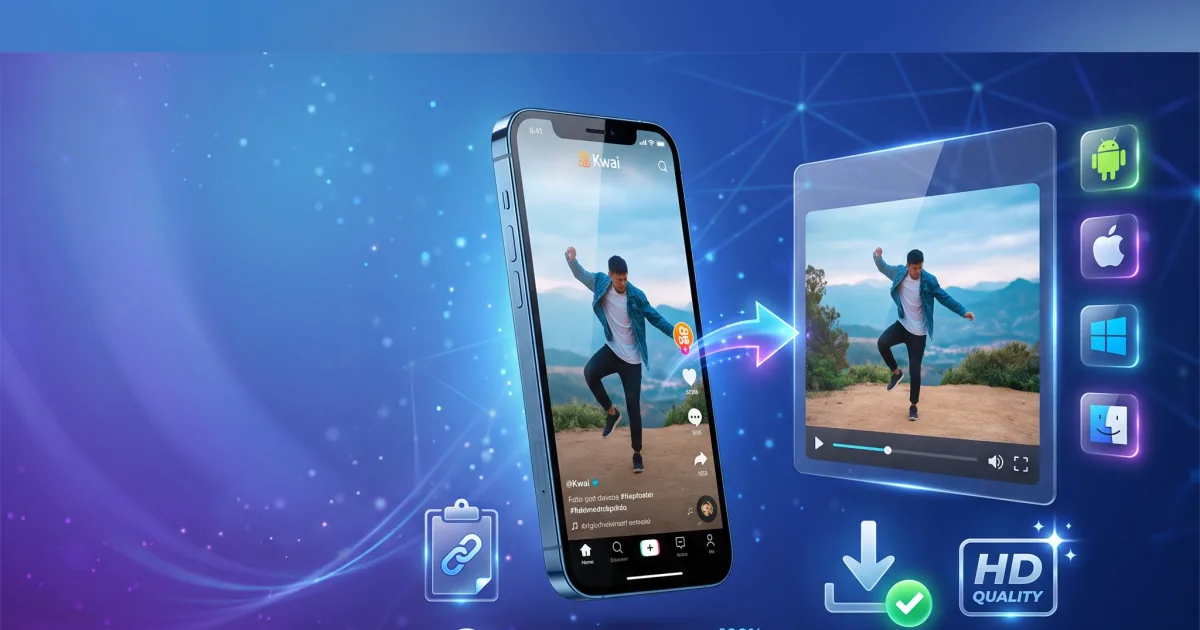
People grab Kwai and Kuaishou videos for all sorts of reasons. Some want to keep a funny clip before it disappears from their feed; others pull reference material for editing, save tutorials to watch offline, or archive sounds for their own content. The watermark gets in the way every time.
Kwai (the international face of Kuaishou) adds that logo for a reason: it helps credit the creator on a platform that moves extremely fast across regions. The mark is usually applied during delivery, which means simple cropping rarely removes it cleanly. That’s why screen recording can feel like a compromise—you lose sharpness, and it becomes a hassle for more than one or two clips.
The methods that still deliver clean files in 2026 fall into a few categories. Some work better than others depending on your device and how often you download. Here’s what actually works, what doesn’t, and how to do it safely.
Table of Contents
- 1. Legal Side First
- 2. Method Comparison: What’s Worth Your Time
- 3. The Reliable Process Most People Use
- 4. iPhone Specifics
- 5. Quality Details That Actually Matter
- 6. Troubleshooting the Common Failures
- 7. Creator and Power-User Angles
- 8. What’s Usually Not Worth It
- 9. Practical Takeaway
- 10. Download Clean Videos with KwaiSave
- 11. FAQ
Legal Side First (Because It Matters)
In most places, downloading for personal use is generally allowed. That includes offline viewing, editing your own projects, and keeping a private collection. The moment you share someone else’s video widely—or use it for business without permission—you enter different legal territory. Kuaishou has dealt with copyright complaints before, and their terms make ownership clear.
A simple test still works: if you wouldn’t feel comfortable crediting the original creator, pause and think again before downloading. Most people stay in the safe zone by treating these files as personal archives or as source material they later transform with proper attribution.
Method Comparison: What’s Worth Your Time
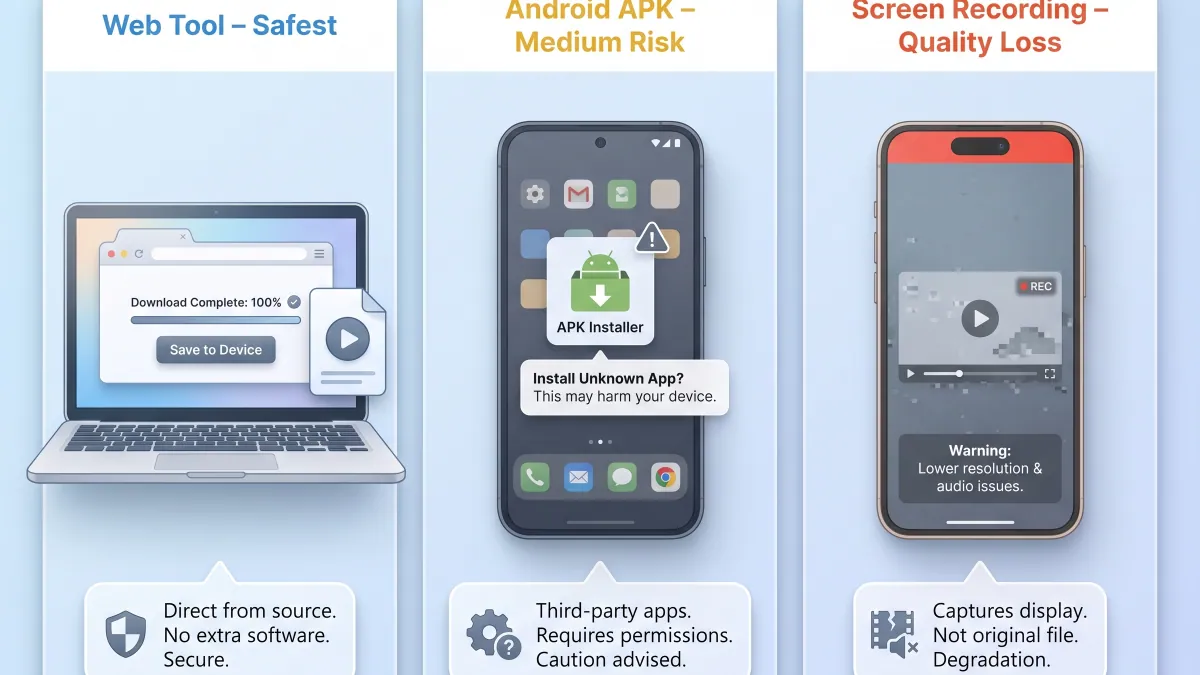
Here’s how the main options stack up right now:
| Method | Ease of Use | Quality Retention | Cross-Device | Risk Level | Best For | Notes |
|---|---|---|---|---|---|---|
| Web-based online tools | Very High | High (original streams) | Excellent | Low | Most users, iPhone & PC | Updates fastest when Kwai changes things |
| Lightweight Android APKs | High | Good | Android only | Medium (permission & longevity issues) | Android power users | Some still solid; many go stale or push ads |
| Screen recording | Medium | Medium (re-encode) | All | Very Low | One-off or blocked clips | Quality drop is noticeable on longer videos |
| Browser extensions | Medium | Varies | Desktop | Medium | Desktop users | Often break after platform updates |
Web tools win for most people today. They stay current, need no install, and work on every device you own. The better ones pull the cleanest available stream instead of re-encoding everything.
Once you’ve picked a method, the workflow is almost always the same: copy the link, paste it into a trusted downloader, and save the clean file. The five steps below cover that process end to end.
The Reliable Process Most People Use
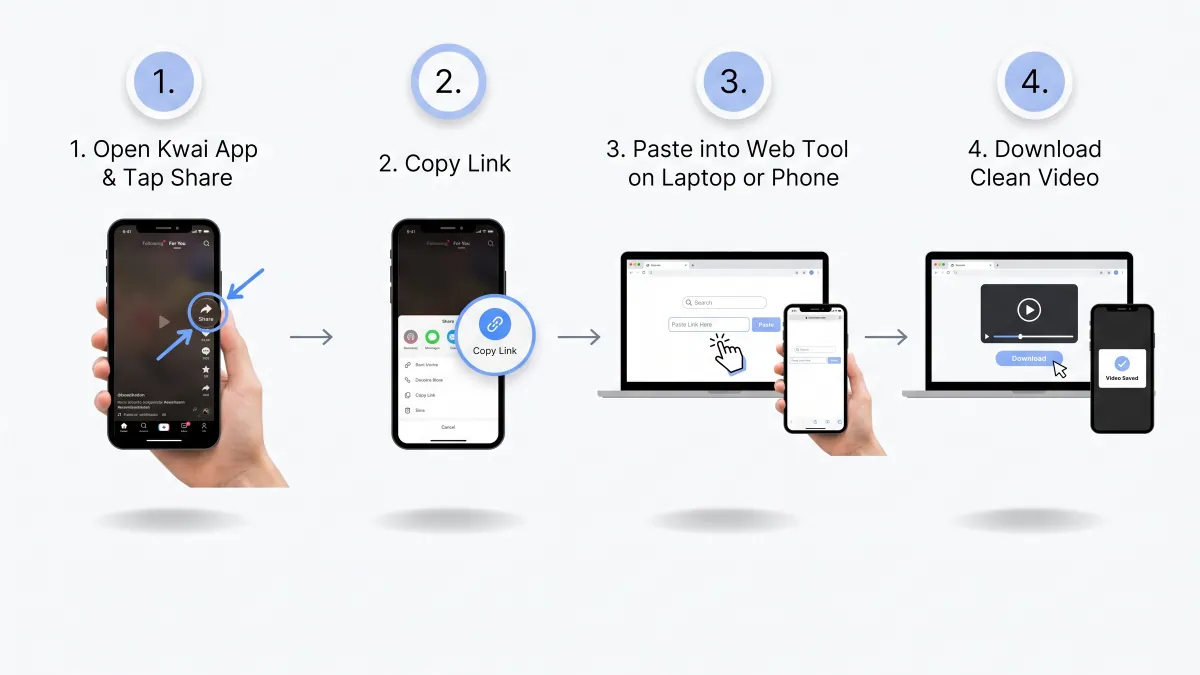
- Open the Kwai or Kuaishou app and find the video you want.
- Tap Share, then Copy Link. (On the web version you can just copy the URL from the address bar.)
- Paste that link into a clean web downloader.
- Choose your preferred quality — many now surface the original or near-original resolution when it’s available.
- Download. On Android it usually lands straight in Gallery or Downloads. On iPhone it goes to the Files app first; you may need one extra tap to move it to Photos if that’s where you want it.
The whole thing takes less than 15 seconds once you’ve done it a couple of times. The part that matters most is picking a tool that actually keeps up with how Kwai structures its links. Older tools that no one has updated since 2025 often return watermarked files or fail on newer short links.
iPhone Specifics (Where Things Get Slightly Fiddly)
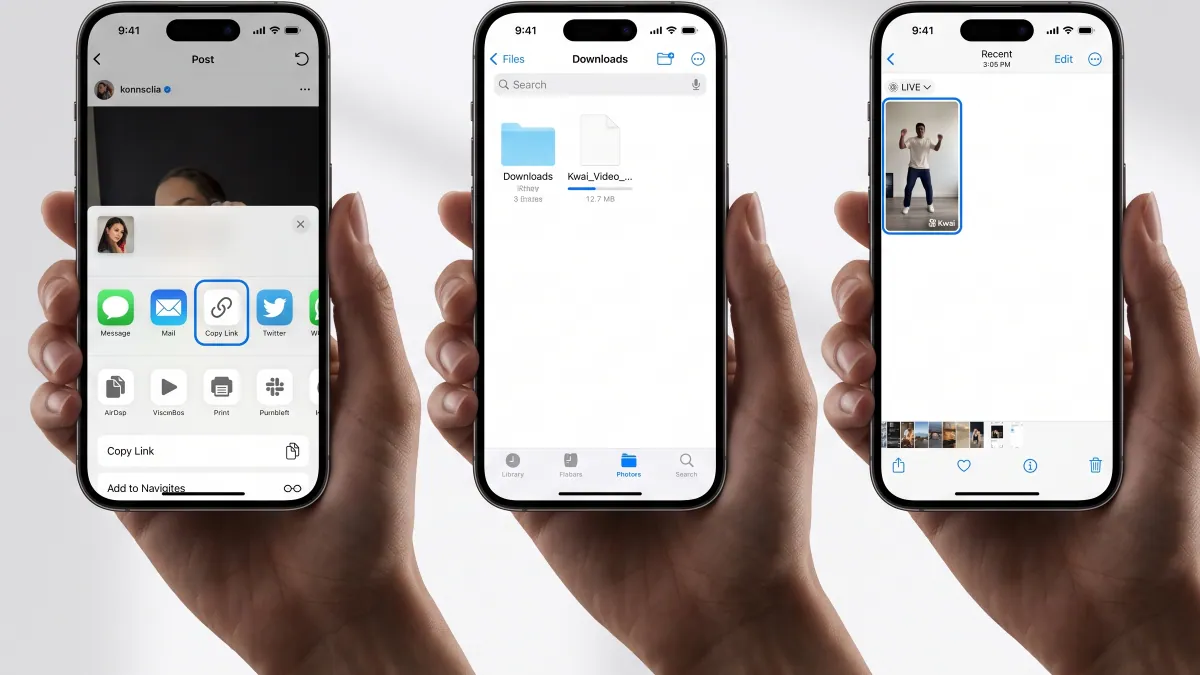
iOS makes direct file handling more restrictive than Android. You won’t always get an instant “save to camera roll” prompt. The better web tools handle this by serving the file in a way that triggers the normal Downloads or Files flow.
A small workflow that reduces friction for frequent users: create a simple Shortcut that grabs a Kwai link from the share sheet, then sends it straight to a trusted downloader page. It’s not complicated, and it saves a few taps if this is part of your regular editing process.
Avoid anything on the App Store that promises native Kwai integration. Most are just web views dressed up, and a few have turned out to be risky.
Quality Details That Actually Matter
Not every “HD” or “4K” download is the same. Some tools re-encode the video, which introduces compression even when the resolution number looks impressive. The stronger options try to grab the original stream that Kwai serves internally before the platform applies the watermark.
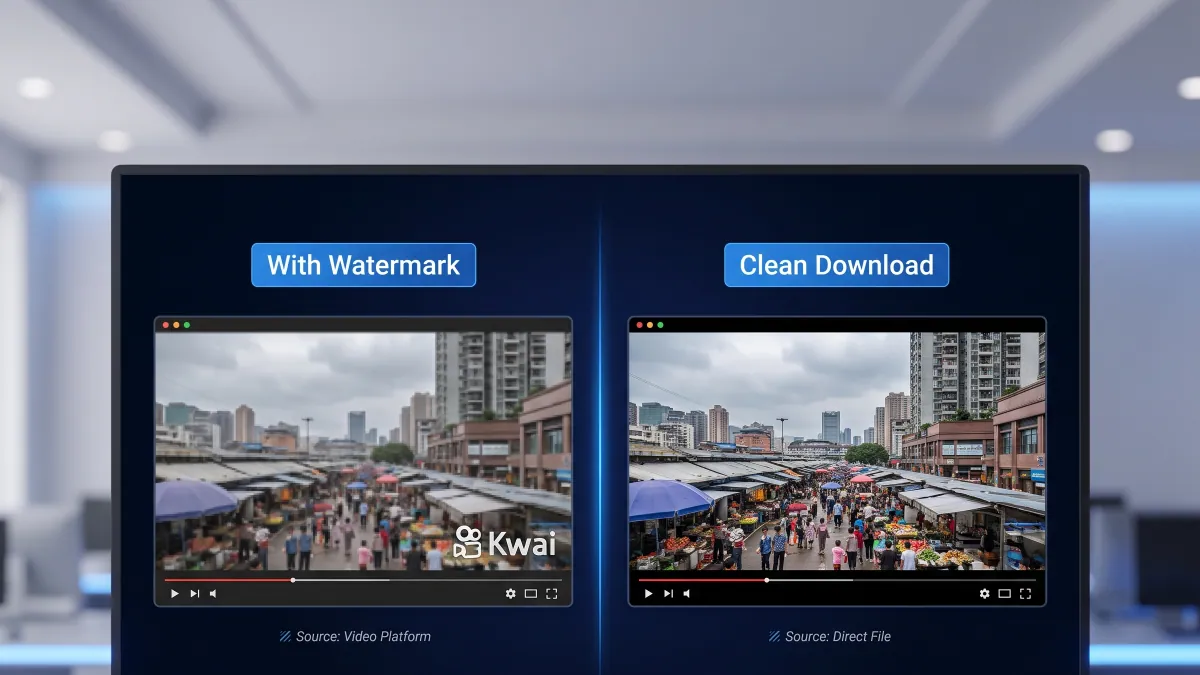
If you pull clips for editing, test two tools on the same video, then compare file sizes and visual quality side by side. For simple offline watching, the highest available option is usually fine. Audio-only extraction has also become surprisingly handy for people who just need the sound for CapCut or similar editors.
Troubleshooting the Common Failures
- Link not recognized — Copy it again, or try the full desktop site version instead of the short share link.
- Watermark still appears — The tool you’re using hasn’t adapted to recent changes in how Kwai delivers video. Switch to a more recently updated one.
- Lower quality than expected — Select the highest quality option manually instead of accepting the default faster, lower-quality stream.
- File won’t appear in Photos on iPhone — Check the Files app Downloads folder first, then move it manually.
- Bulk downloads stalling — Break them into smaller batches. Some tools have soft limits during busy periods.
These issues pop up because Kwai keeps adjusting delivery and anti-scraping signals. Tools that treat this as ongoing maintenance rather than a one-time build tend to stay reliable longer.
Creator and Power-User Angles
If you’re archiving videos regularly for editing or reference libraries, one-at-a-time pasting eventually becomes tedious. A few tools now support pasting multiple links at once or pulling from browser history in limited ways. Pair a solid web tool with a simple tracking sheet (what you saved, original link, date) to keep things organized as volume grows.
Screen recording still has a narrow use case for private or region-restricted content that current tools can’t parse cleanly. Treat it as the backup option rather than the main workflow.
What’s Usually Not Worth It
Random APK sites with heavy advertising or “modded” versions carry more risk than reward these days. Permission creep and sudden breakage after updates are common. Anything asking for your Kwai login is an immediate no. And assuming every video will download cleanly is unrealistic—private accounts and certain live content remain restricted.
Practical Takeaway
The best approach through 2026 is simple: use a regularly updated web downloader for most clips, keep one lightweight Android option as a backup if you use that ecosystem, and use screen recording only when nothing else works. Stay aware of platform changes and be ready to switch tools when one starts returning lower-quality or watermarked files.
Save what you actually need, credit creators when you share or transform their work, and keep the process simple instead of chasing every new APK that appears. That combination tends to age better than any single tool recommendation.
Download Clean Kwai Videos with KwaiSave
Ready to save a clip without the watermark? Paste your Kwai or Kuaishou link into KwaiSave and download a clean HD MP4 in seconds—no app install, no login, and no shady APKs.
Open Free Downloader →FAQ
About the Author: Mehtab Ahmed
Mehtab Ahmed is the founder of KwaiSave and a web developer with 6+ years of experience building browser-based media tools. Based in Lahore, Pakistan, he writes about social media platforms, content creation, and digital tools.