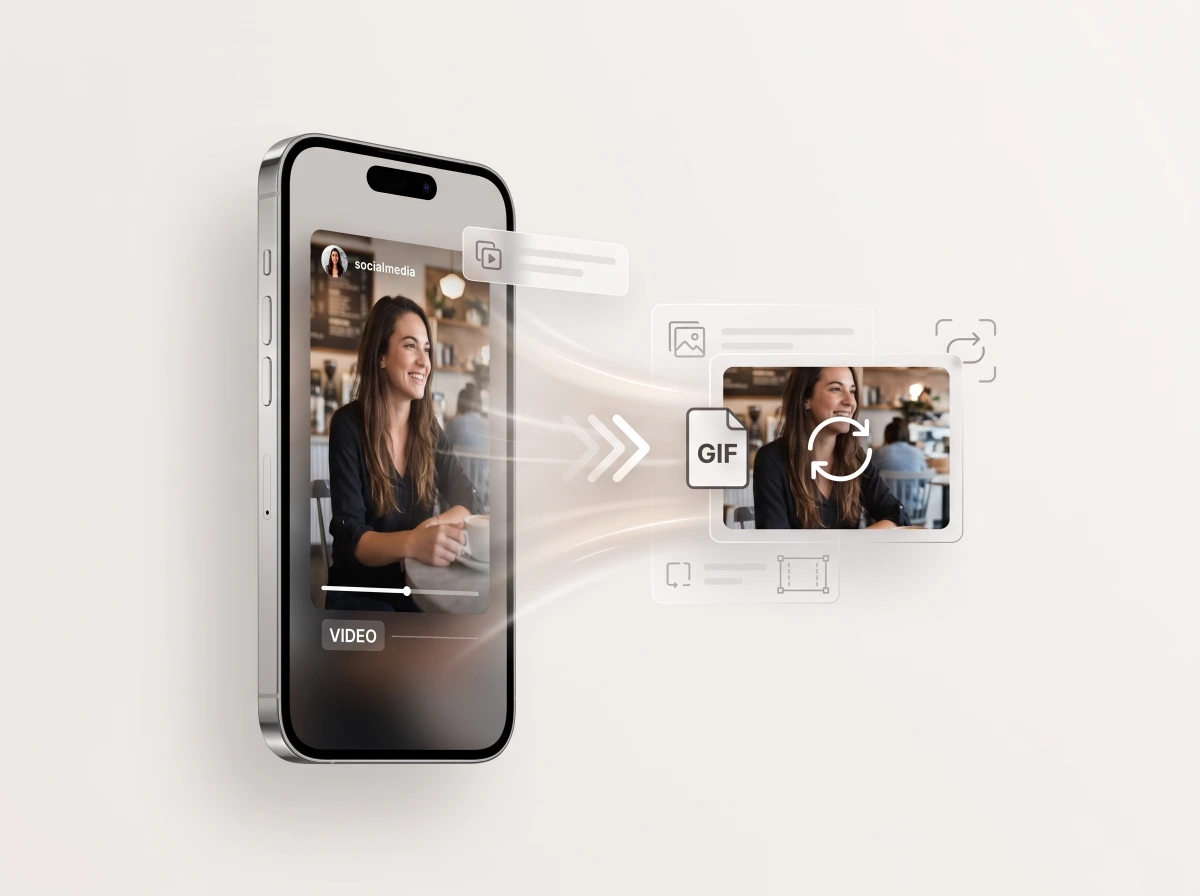
A GIF is a short, silent image file that loops automatically — no play button, no sound, just motion. Turning a Kuaishou or Kwai clip into one gives you something the original video can't do as easily: drop straight into a chat, a forum reply, or a slideshow where nobody needs to press play. Most tools that do this require two steps — download the video somewhere, then upload it to a separate GIF converter. KwaiSave does both from the same pasted link, which is what the rest of this page assumes you're using.
Table of Contents
Turning a Kwai Video Into a GIF

- Copy the link to the Kuaishou or Kwai video from the app — the share button gives you a URL you can paste elsewhere.
- Paste that link into KwaiSave.
- Select GIF as the output format instead of MP4.
- Save the file to your device.
No account and nothing to install — the same paste-a-link process KwaiSave uses for a regular video download, just pointed at a different output format (see how KwaiSave's no-watermark download works). There's no separate trimming step: the whole clip converts as one piece, so if you only want a few seconds out of a longer video, trimming it down first — with a video editor, or by picking a Kwai clip that's already short — will get you a cleaner result than converting the full thing and hoping the file stays manageable.
What Actually Changes When a Video Becomes a GIF
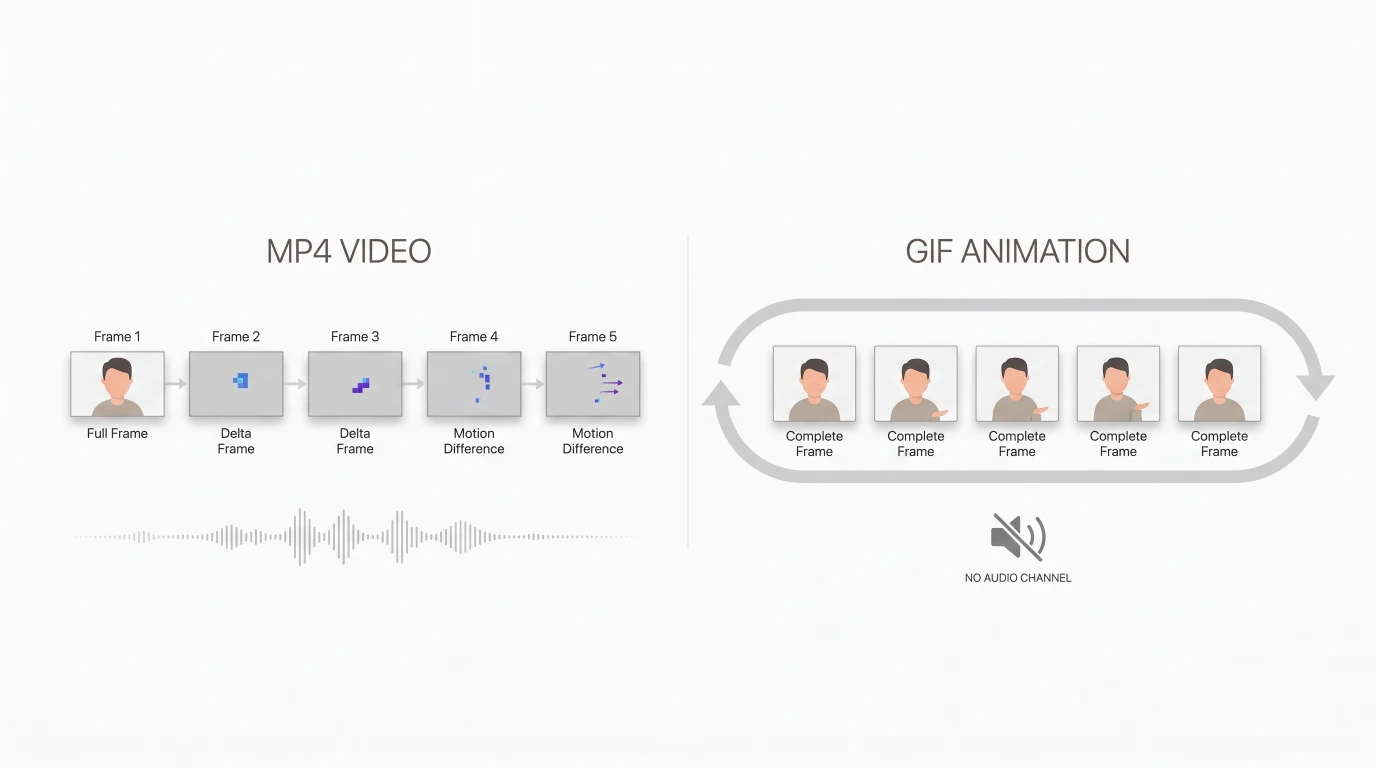
A GIF isn't a compressed video — it's a different kind of file entirely. Video formats like MP4 store most frames as changes from the frame before them, which is why a ten-second clip of someone barely moving stays small. GIF doesn't do that. Each frame is stored close to independently, with its own limited color palette, and the frames are stitched into a loop rather than predicted from one another.
That's also the reason a GIF has no sound: the format was never built with an audio channel at all, not for Kuaishou/Kwai videos specifically or for any video. If the moment you're capturing depends on the audio — a voiceover, a punchline, music — exporting the clip as MP4 will keep it; a GIF won't.
Keeping the File Size — and the Look — Reasonable
Because GIF stores frames this way, length and resolution affect file size a lot more than they would for a video. A few widely used guidelines, based on GIPHY's own creation guidance for GIFs generally:
| Choice | What it does to the file |
|---|---|
| Clip length | GIPHY caps uploads at 15 seconds and recommends 6 or under — past that, size climbs fast |
| Resolution | 480p is their preferred target, 720p the upper end — higher than that adds size with little visible benefit in a loop this short |
| Frame count | Keeping it under roughly 100 frames is their rule of thumb |
These aren't limits KwaiSave enforces — they're a sensible target if you want a GIF that's easy to send and doesn't take forever to load. Worth knowing separately: GIF's limited color palette (256 colors at most, versus millions in a video frame) can show up as visible banding or dithering on busy or colorful footage, even when the file size looks fine. It's a tradeoff of the format itself, not something a shorter clip fixes.
GIF or MP4?
If the clip needs to loop somewhere sound doesn't play anyway — a four-second reaction moment dropped into a group chat, a preview image on a forum post — GIF is the simpler choice. If the audio matters, or you want more than a few seconds, exporting as MP4 keeps the full thing intact; KwaiSave supports both from the same paste-a-link step.
If It Doesn't Work

A link that doesn't produce a preview is almost always the wrong kind of link — a profile or channel URL instead of the individual video's share link. Re-copying the link directly from the video's own share button, rather than the address bar or a profile page, fixes this in most cases. If the source video has since been deleted, made private, or is region-restricted, there's nothing for KwaiSave — or anything else — to pull from; that's true of a regular download too, not something specific to GIF export.
Turn a Kwai Video Into a GIF
Paste a Kwai or Kuaishou link, pick GIF as the format, and download the loop straight to your device — no install, no login.
Open Free Downloader →Common Questions
About the Author: Mehtab Ahmed
Mehtab Ahmed is the founder of KwaiSave and a web developer with 6+ years of experience building browser-based media tools. Based in Lahore, Pakistan, he writes about social media platforms, content creation, and digital tools.