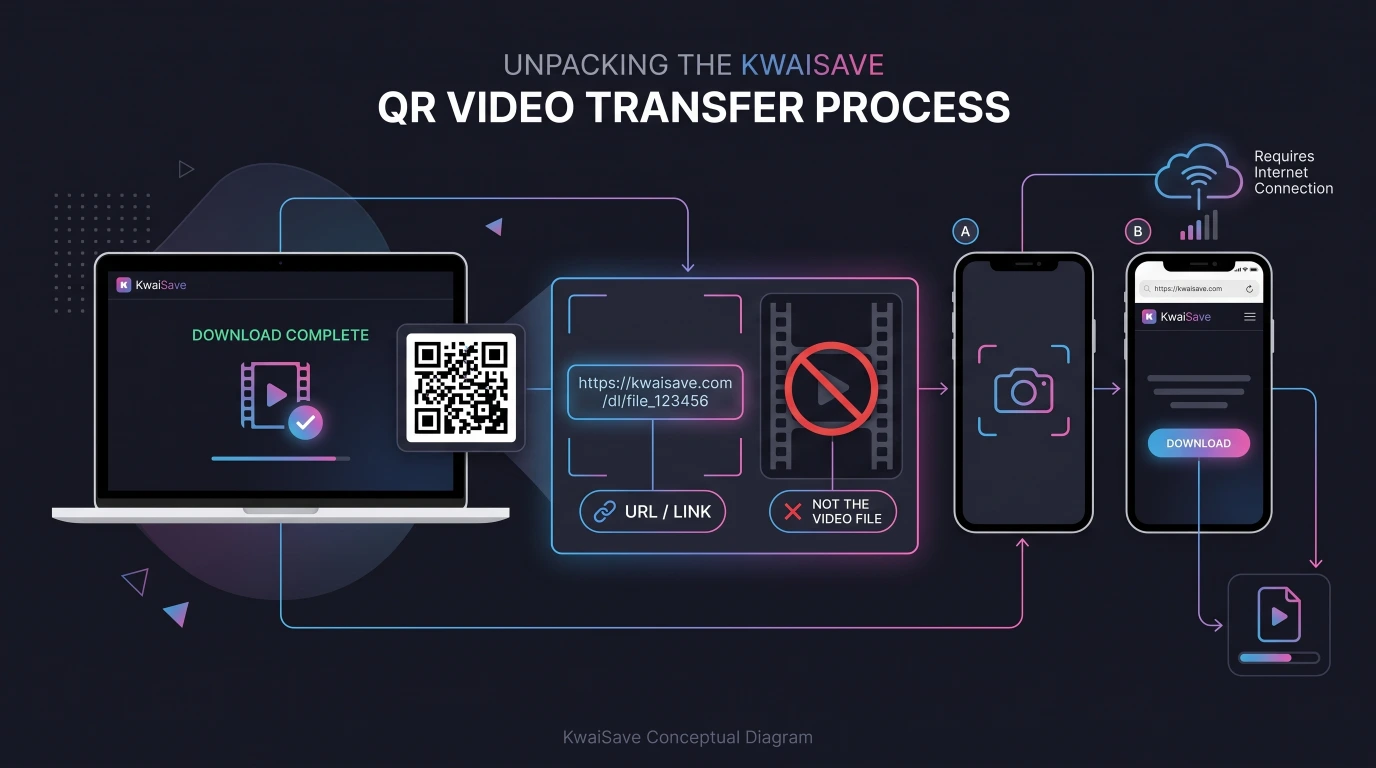
If you've already pulled a Kwai or Kuaishou video down on a computer using KwaiSave, there's a faster way to get that file onto your phone than emailing yourself a link or hunting for a cable: scan the QR code that shows up next to your finished download. Your phone's camera reads it, opens the same download page on your phone, and you finish the download there — no app to install, no cable, and no AirDrop, which only moves files between Apple devices anyway.
This applies whether the link you started with was labeled Kwai or Kuaishou (more on that below), and whether you downloaded a video (MP4 or GIF), just the audio (MP3), or saved a profile photo — the same QR panel appears for all of them.
Table of Contents
- 1. Not the Same as Kwai's Own QR Features
- 2. When You Actually Need the QR Code
- 3. Sending the Video to Your Phone
- 4. Scanning a QR Code If You've Never Done It
- 5. Kwai vs. Kuaishou — Does It Change Anything Here?
- 6. If the QR Code Won't Scan or the Link Won't Open
- 7. Other Ways to Get the Video Onto Your Phone
- 8. FAQ
Not the Same as Kwai's Own QR Features
A QR code is just a small square barcode — a pattern of black-and-white squares a phone camera can scan and turn into a link, without anyone having to type it in. Because that's generic technology, plenty of unrelated things reuse it, including inside Kwai's own app: Kwai has separate QR-code features of its own, tied to things like your personal profile and, in some contexts, signing in — none of which is what this article covers. If that's what you were searching for, look inside the Kwai app itself or Kwai's own help resources rather than here.
This article is specifically about the QR code KwaiSave shows you after a video finishes downloading on a computer, and how scanning it gets that file onto your phone.
When You Actually Need the QR Code
If you're already on your phone, skip this entirely: open KwaiSave in your phone's browser, paste the video link there, and the file downloads straight to your phone the normal way. No QR code involved. (KwaiSave's own device guides cover this path in more detail — downloading Kwai videos on iPhone and downloading Kuaishou videos on Android.)
The QR code solves a narrower, more specific problem — you did the download on a computer (maybe that's where you copied the link from, or you just find it easier to paste on a bigger screen), but the file you actually want is the one on your phone, because that's where you'll post it, message it, or watch it. Scanning the code is what bridges that gap without a second trip through email or a USB cable.
Sending the Video to Your Phone
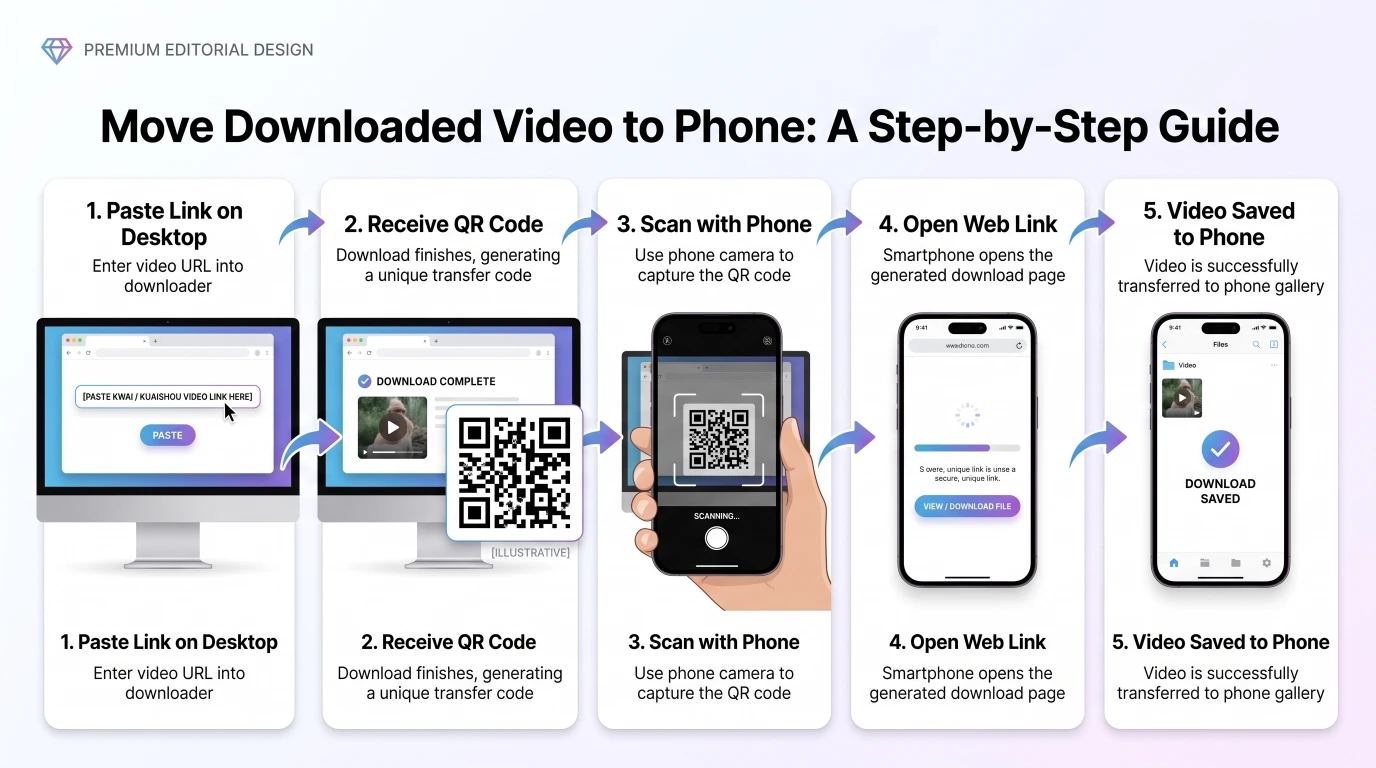
- Paste the video link into KwaiSave on your computer, just like you normally would, and choose what you want: the video (MP4), the audio only (MP3), a GIF — or, separately, a profile photo.
- Let it finish processing. The QR code appears alongside the finished result, not before.
- Open your phone's camera and point it at the code. Most phones read it instantly without needing a dedicated scanner app — see the section below if yours doesn't.
- Tap the link that pops up. It opens the same download page on your phone.
- Download the file from there, just as you'd download any other file your phone's browser hands you.
The video itself isn't beamed directly to your phone through the code — the QR code carries the link, and your phone still needs an active internet connection to open that page and pull down the file.
Scanning a QR Code If You've Never Done It
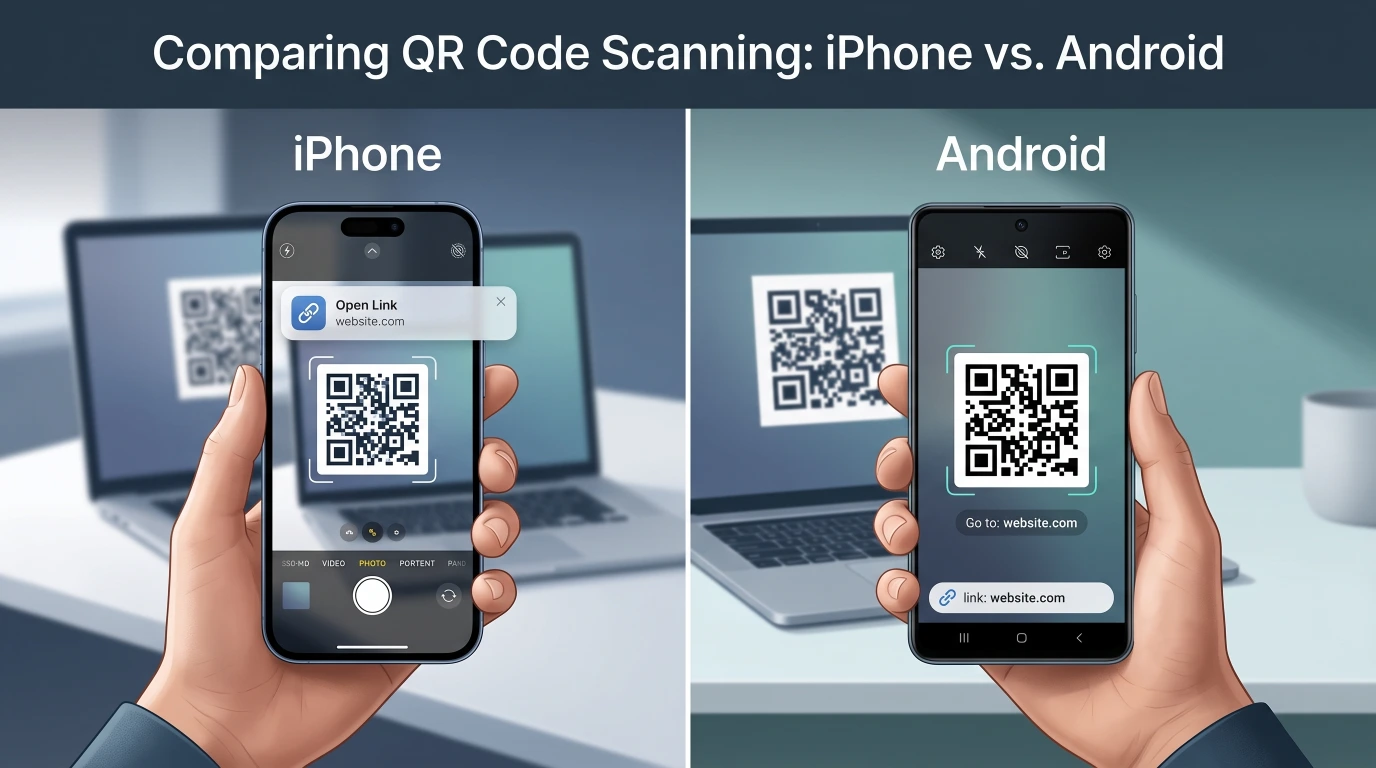
On iPhone
Open the built-in Camera app and point it at the code — no separate scanner app needed on any reasonably current iPhone. A notification banner appears with the link; tap it to open. Apple's own instructions for this are here: Scan a QR code with your iPhone or iPad.
On Android
Most Android phones can scan a QR code directly through the camera app too, though the exact behavior depends on the phone's manufacturer and which camera app it ships with. Google's Camera app handles it natively — see Scan QR codes on Camera from Google — and if your phone's default camera doesn't pick it up, Google Lens (built into most Android phones) will.
Kwai vs. Kuaishou — Does It Change Anything Here?
No. Kwai and Kuaishou are the same short-video app under different regional names — Kuaishou is the original app, Kwai is the branding used in international markets like Brazil and Indonesia. KwaiSave accepts links from either, and the QR-to-phone step works identically regardless of which one the link came from.
If the QR Code Won't Scan or the Link Won't Open
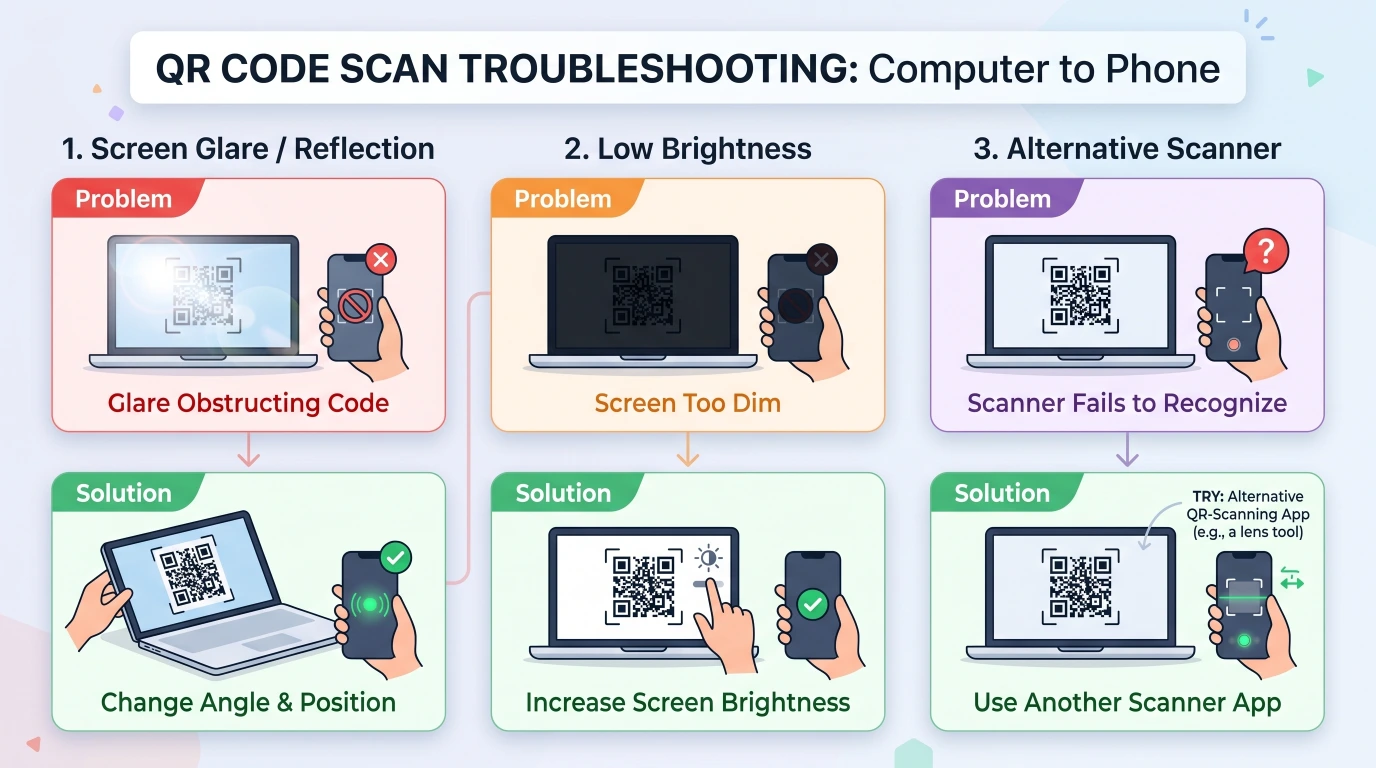
A few things account for most failed scans:
- Screen glare or low brightness. A QR code on a laptop or monitor can be hard for a phone camera to lock onto in direct light or at a steep angle. Angling the screen or turning the brightness up usually fixes it.
- An older phone without native QR support. If your camera app doesn't automatically recognize the code, Google Lens (Android) or a basic third-party QR scanner app will read it without issue.
- The page was closed or refreshed on the computer before you scanned. The QR code is tied to that specific result, so if the browser tab was closed or the page reloaded, generate the download again and scan the new code.
What happens if my phone doesn't have an internet connection?
The code only opens a link — it doesn't send the file itself over Bluetooth or any offline connection. Your phone still needs data or Wi-Fi to load the page and finish the download.
What happens if the original video has been deleted or made private?
There's nothing left to download. The QR code just points to the same link KwaiSave already generated, so if the source Kwai or Kuaishou video is gone or private, that link has nothing to pull from — that's a limitation of the source video, not of the QR step itself.
Other Ways to Get the Video Onto Your Phone
The QR code is the most direct option, but it's not the only one. If you'd rather not scan anything, you can start the whole process over from your phone's browser instead of transferring from a computer. Between two Apple devices, AirDrop is still a reasonable alternative once the file is already saved. Emailing the file to yourself or uploading it to cloud storage works too — it's just slower for something this small.
Download and Send a Kwai Video to Your Phone
Paste a Kwai or Kuaishou link on your computer, then scan the QR code to finish the download right on your phone — no cable, no login.
Open Free Downloader →Common Questions
About the Author: Mehtab Ahmed
Mehtab Ahmed is the founder of KwaiSave and a web developer with 6+ years of experience building browser-based media tools. Based in Lahore, Pakistan, he writes about social media platforms, content creation, and digital tools.