Most Kuaishou or Kwai download failures trace back to one of a handful of causes — the wrong kind of link, a private or deleted video, a stalled transfer, or something off with the file after it's already downloaded. This covers all of them except two specific situations that already have their own dedicated answers: region-locked links (the fix is different enough that it gets its own article) and pulling a clip directly from a live stream while it's still airing, which is a different technical situation this hub isn't going to resolve one way or the other. If either of those is specifically what brought you here, this isn't the most complete page on it — the region-lock article covers that one in full, and live-stream clip-grabbing isn't something covered in depth anywhere on this site yet.
If KwaiSave's page itself won't load, times out, or throws an error before you've even pasted a link, that's a different problem from everything below, which all assumes the page loaded fine. Try reloading once, and if the site genuinely won't come up at all, that's a site-availability issue rather than anything covered here.
Table of Contents
Before You Troubleshoot Anything
Three things worth ruling out before working through a specific scenario below, since they explain a surprising share of "it's not working" reports on their own:
- Confirm the video actually plays from inside the Kwai or Kuaishou app itself first. If it doesn't play there either, no downloader is going to fix that.
- Try a different browser or a private/incognito window. This rules out an extension or a stuck browser state in one step, rather than diagnosing it piece by piece.
- Re-copy the link fresh from the video's own share button, rather than reusing a link you copied a while ago or forwarded from somewhere else.
Quick Reference
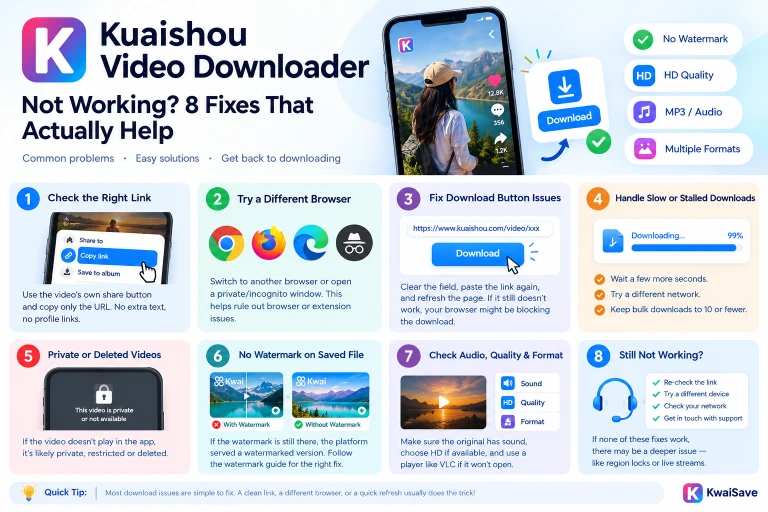
| What's happening | Likely cause | Fix |
|---|---|---|
| Nothing happens after pasting the link | Wrong link type, or extra text got pasted along with it | Re-copy from the video's own share button, paste just the URL |
| Download button doesn't respond | Field didn't register the link, or an ad/script blocker is interfering | Clear the field and re-paste; try disabling blockers for the site |
| Stuck at 99%, slow, or stalled | Large file on a slow connection, or an overloaded bulk batch | Let it finish, try a different network, keep bulk batches at 10 or fewer |
| "Private video" or no reaction at all | Account is private/friends-only, or the video's been deleted | Confirm it still plays from the app itself first |
| Watermark still on the saved file | The platform served an already-watermarked version of the stream | See the watermark guide |
| No sound on the downloaded file | Original clip is silent, or audio dropped during the save | Check the clip plays with sound in the app first |
| Won't open or play after downloading | Incomplete file, or your player doesn't support the format | Check the file size, try a different player (VLC is a safe bet) |
| Blurry or lower quality than expected | SD was selected instead of HD, or that's what the creator uploaded | Re-check the quality setting and don't expect better than the source |
Troubleshooting, Scenario by Scenario
Invalid link or "link parsing failed"
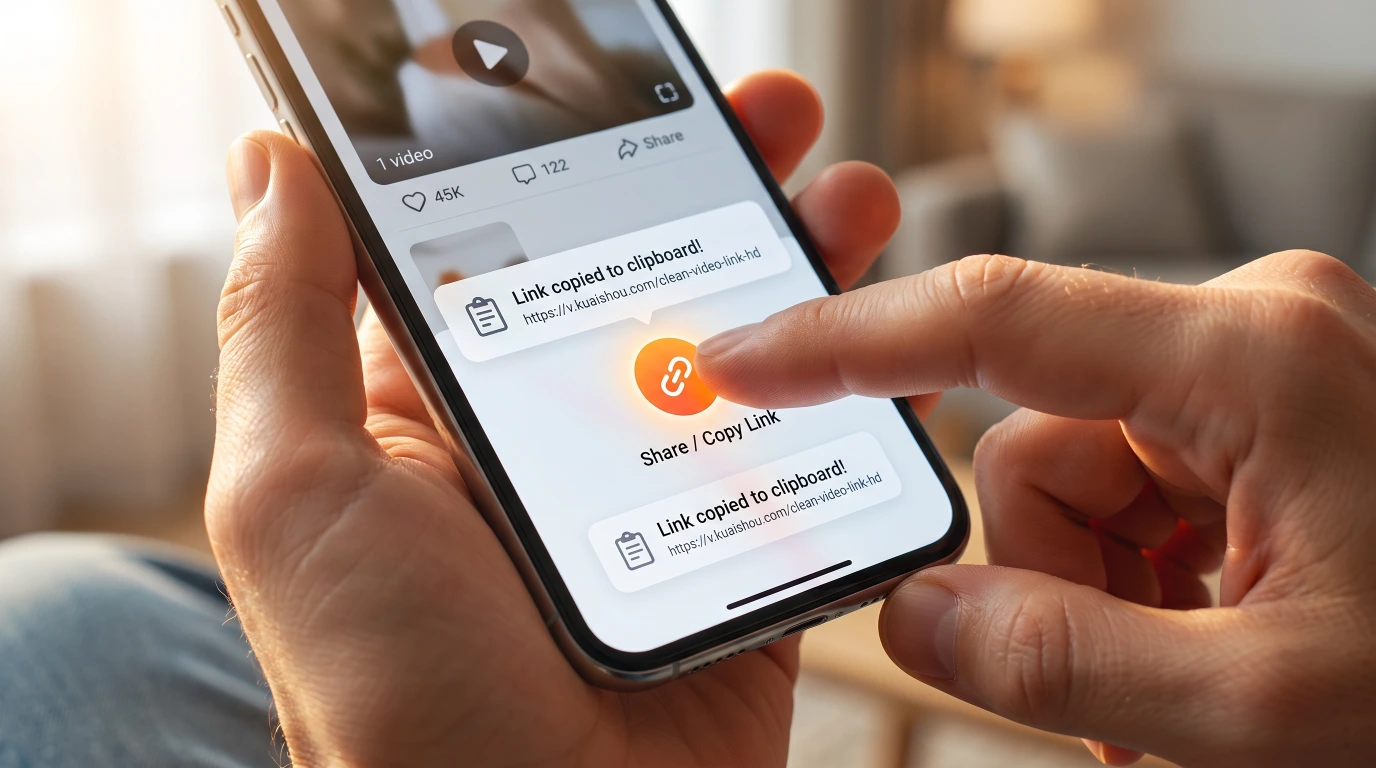
- Re-copy the link directly from the video's own share button — not the address bar, not a profile page, not a search result.
- If the link has extra characters tacked onto the end (tracking parameters, a stray space, text copied alongside it from a messaging app), strip it down to just the URL before pasting.
- Make sure it's a single video's link, not a link to a whole profile or a collection — KwaiSave reads one video per paste outside of the Bulk Download tab.
Worth naming the one thing this doesn't cover: a link to a clip from a live stream that's still airing. That's a different situation from a link to a video that's already been posted, and this article isn't going to claim it works or doesn't.
Download button not working or not appearing
- Clear whatever's in the link field and paste again — a partial or malformed paste is the most common reason the button stays inactive.
- Refresh the page and try once, rather than clicking repeatedly — repeated clicks on a field that never registered the link the first time won't do anything different the second time.
- If the link field appears but nothing happens no matter how it's pasted, that's more often a browser-side interference issue than a broken link — see the FAQ below.
- A download that seems to vanish rather than fail outright is sometimes the browser itself stepping in — Chrome can flag a file as "an uncommon or unfamiliar file" and hold it back (Google's own explanation of when Chrome blocks downloads). Check your browser's own download bar or notifications, not just KwaiSave's page, before assuming nothing happened.
Download stuck at 99%, slow, or stalled
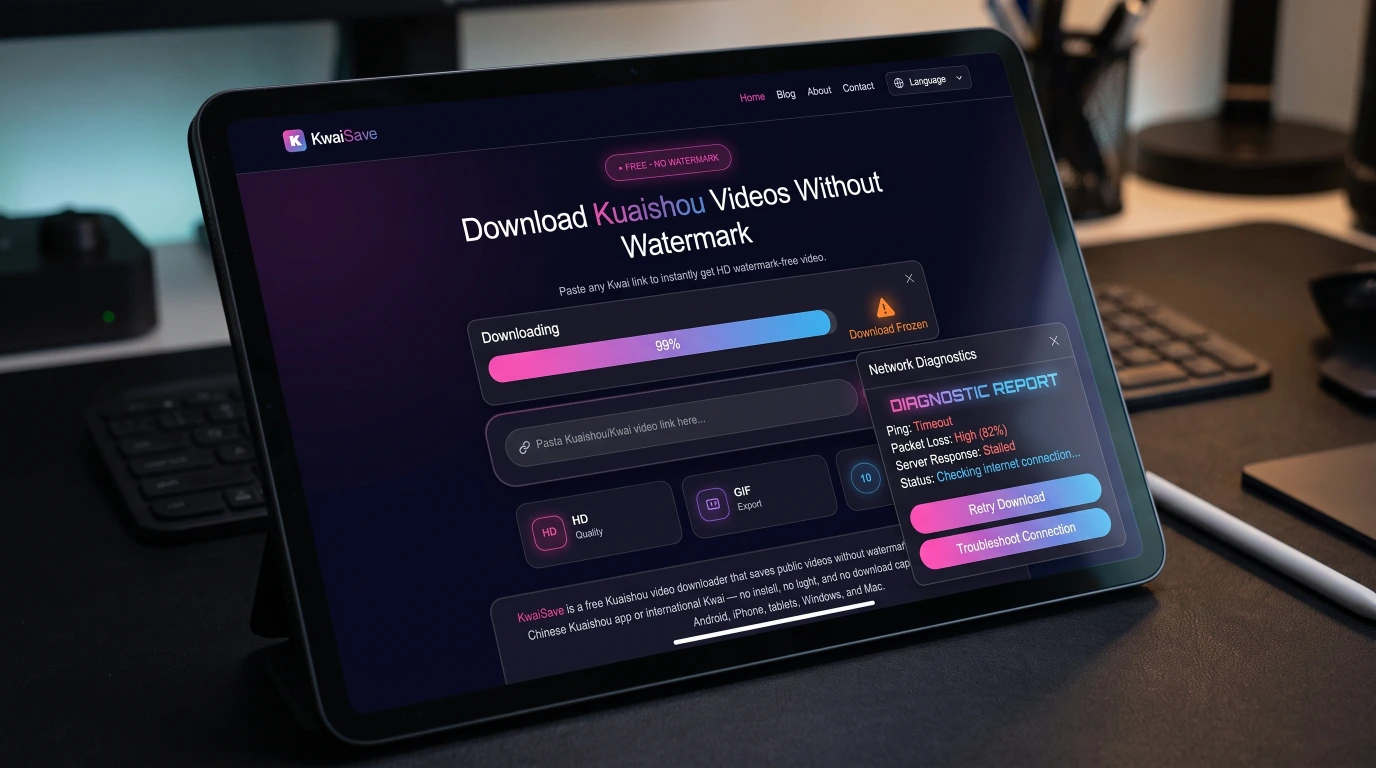
- Give it a few extra seconds before assuming it's frozen — a large file on a slow connection can sit near the end longer than it looks like it should.
- Try switching networks if it's genuinely stuck, not just slow.
- If this is happening in the Bulk Download tab, check how many links are in the batch — it's built for up to 10 links at once, and overloading the box past that is a documented way to make the whole queue hang rather than just the extra links failing individually.
Private or unsupported video
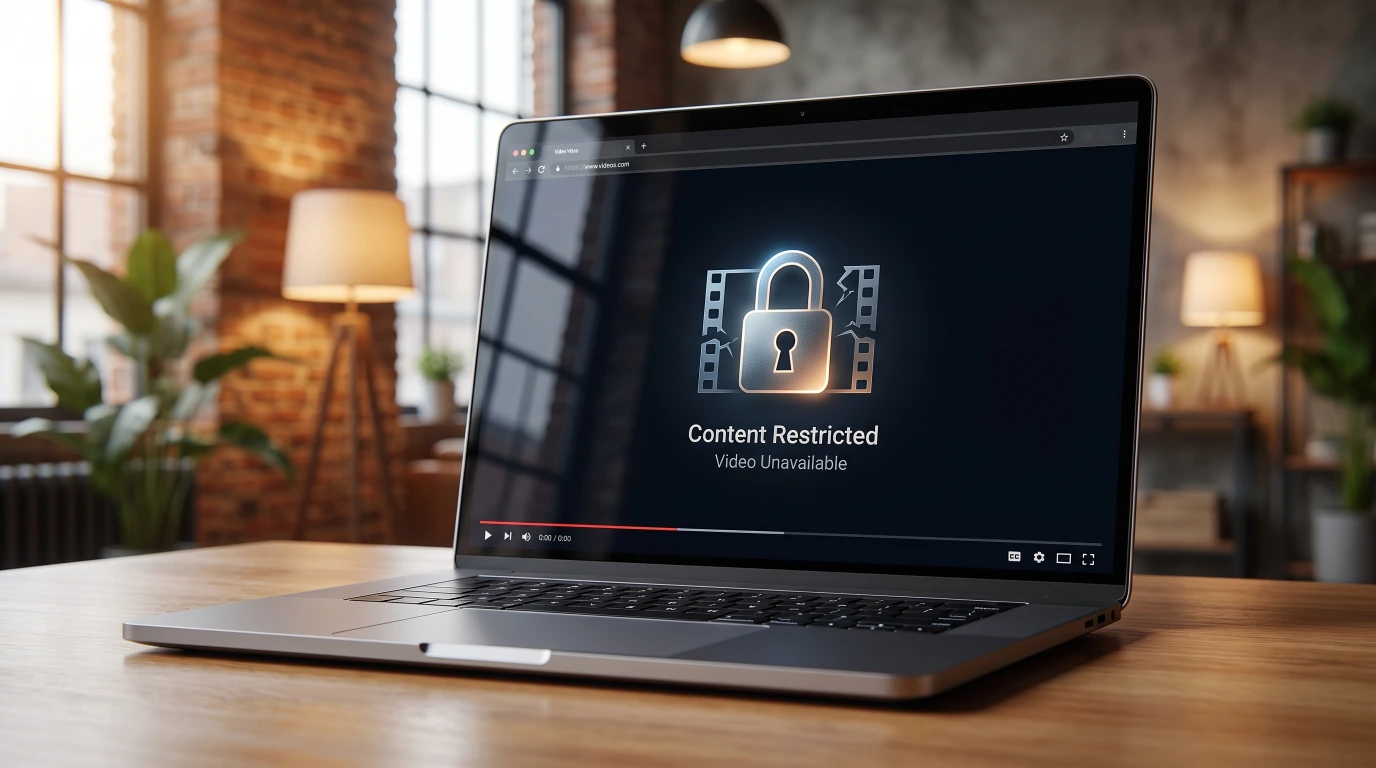
- The most common cause by far: the account posting it is set to private or friends-only. KwaiSave, like any browser-based downloader, can't pull video content from an account that isn't public — that's the account owner's setting working as intended.
- The second most common cause: the video's been taken down or deleted since the link was shared.
- If it's not either of those — the video still plays fine from inside the app, and the failure is intermittent rather than happening on every single attempt — that points toward a routing/region issue instead, which gets its own explanation in why some Kuaishou links fail to download.
- If you're trying to work out whether any of this is actually allowed in the first place — reposting a private video you got through other means, for instance — that's a separate question from why the download itself is failing. Is it legal and safe to download Kwai videos? covers that side of it.
Watermark still visible after download
The short version: this isn't always something a downloader failed to remove — sometimes the platform serves a stream that already has a watermark baked in before any tool touches it, and no downloader can strip something that's already part of the video file. For the fuller breakdown of what different download methods can and can't actually do about this, see getting watermark-free Kwai downloads rather than this article re-explaining it.
Downloaded video has no sound
- Play the original clip from inside the app first. Some videos are genuinely silent by design — nothing anyone downloads from them will have audio either.
- If it plays with sound in the app but the downloaded file is silent, try downloading it again — an audio track occasionally drops during a save the same way any file transfer can lose a piece of itself.
- If audio is actually the only thing you wanted in the first place, pulling it as its own file is usually cleaner than troubleshooting a video download for its sound — see extracting audio as MP3.
Video won't open or play after downloading
- Check the file size first. A file that's unexpectedly tiny (a few KB) didn't finish downloading, even if your browser says it did — delete it and download again rather than trying to open a partial file.
- Make sure you're actually looking at the file that downloaded. Mobile browsers in particular don't always save to an obvious place — check your phone's Files app or Downloads folder rather than assuming the file is wherever you expected it to land, especially on the first download of a session.
- Try a different player. Most phones and computers have a default video app that's pickier about formats than it needs to be — VLC (free, available on every major platform) supports a notably wide range of video formats out of the box and is worth having installed just for this.
- If it plays but looks or sounds wrong rather than refusing to open at all, that's a different problem — see the quality section below, or the no-sound section above.
Wrong or blurry quality
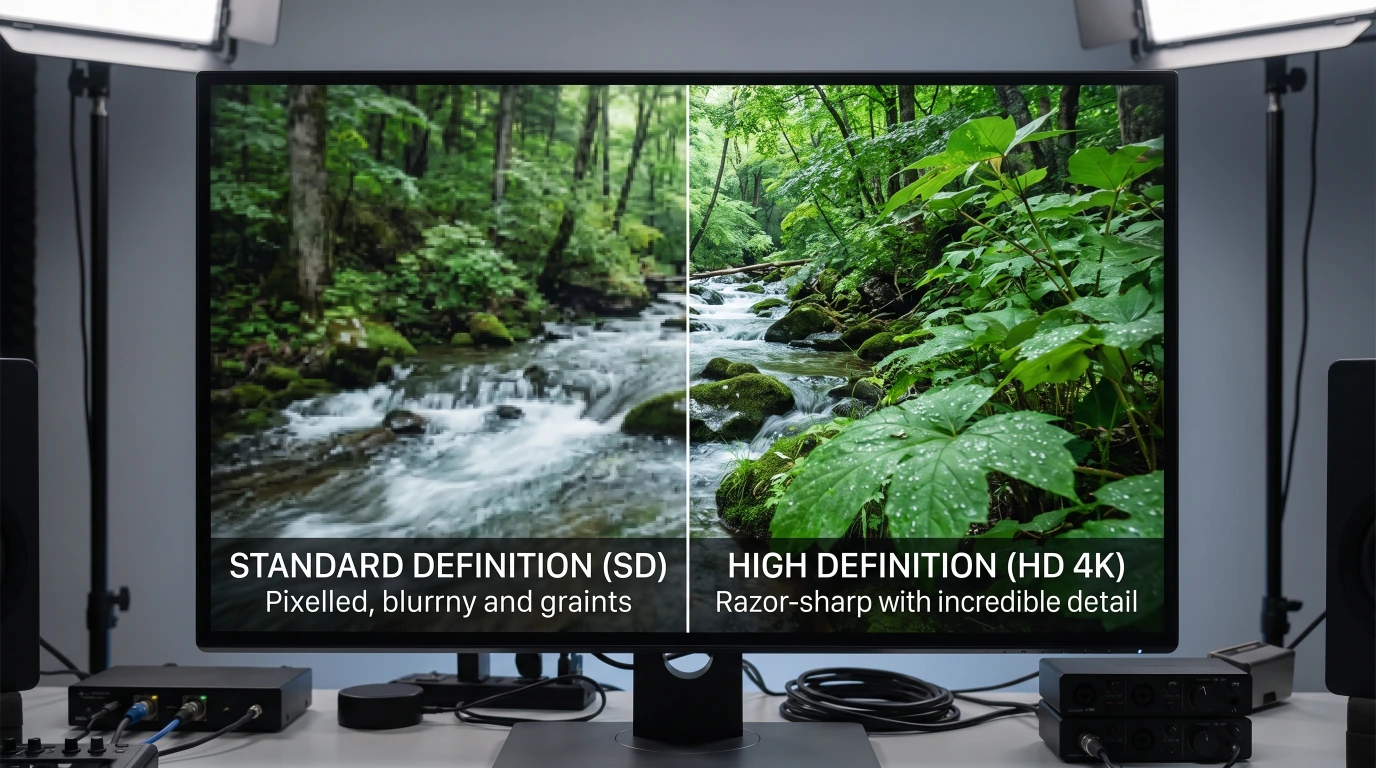
- Double-check HD was actually selected before downloading, not SD. It's an easy thing to pick wrong on a small screen.
- Know the actual ceiling: KwaiSave's own quality options reflect what the creator uploaded in the first place. If a creator posted in a lower resolution, choosing HD on KwaiSave's end doesn't manufacture detail that was never there — HD/SD is a choice between what's available, not a quality boost applied afterward.
- If the video you're downloading is itself a repost of someone else's video (rather than the creator's original upload), you're often looking at a second round of compression on top of whatever the first one already cost. This is the same generation loss effect that applies to any lossy video or audio format re-encoded a second time — a real quality ceiling that has nothing to do with which downloader is used.
On a Specific Device or Browser
The process doesn't change by device — KwaiSave runs in the browser rather than as an installed app, so there's no separate "mobile version" to troubleshoot differently from desktop. What does vary is how you copy the share link in the first place, which the device-specific guides cover in more detail than belongs here: iPhone, Android, and PC/Mac.
On the browser question specifically: this article isn't going to claim one browser is "best" for KwaiSave in general, because nothing about the tool itself favors one — but general, well-documented browser behavior does make a real difference in one specific spot.
- Chrome and Edge behave almost identically, since Edge is built on the same underlying engine — both show the download-blocking behavior described above for unfamiliar files, and both put completed downloads in a visible, easy-to-find download bar.
- Safari on iPhone and iPad is the one place switching browsers is actually worth testing. Mobile Safari's file-handling has a reputation for being less transparent about where a download lands than Chrome's download bar is — this isn't something tested against KwaiSave's flow specifically, but it's consistent, general iOS browser behavior. If a file seems to vanish specifically on an iPhone, trying Chrome there instead of Safari is a reasonable next step before assuming the download failed.
- Firefox behaves closer to Chrome than to Safari here, including similar warnings for unfamiliar file types.
That's a narrower, more honest answer than "use browser X" — the real pattern is iOS Safari specifically, not a general ranking of browsers.
Try Your Kuaishou Link Again
Fresh link copied from the share button? Paste it into KwaiSave and pick HD — free, in your browser, no app to install.
Open Free Downloader →Frequently Asked Questions
About the Author: Mehtab Ahmed
Mehtab Ahmed is the founder of KwaiSave and a web developer with 6+ years of experience building browser-based media tools. Based in Lahore, Pakistan, he writes about social media platforms, content creation, and digital tools.