
If you've got a Kuaishou or Kwai video and you only want the sound — the song playing in the background, someone talking, a sound effect — you don't need the video file at all. Paste the link into KwaiSave, choose MP3 instead of MP4, and you get an audio-only file in the same couple of clicks as a normal video download.
This covers how that actually works, what you're getting quality-wise (without the vague "studio quality" language some competing sites use), and the specific things people do with the file afterward.
Table of Contents
Getting the MP3
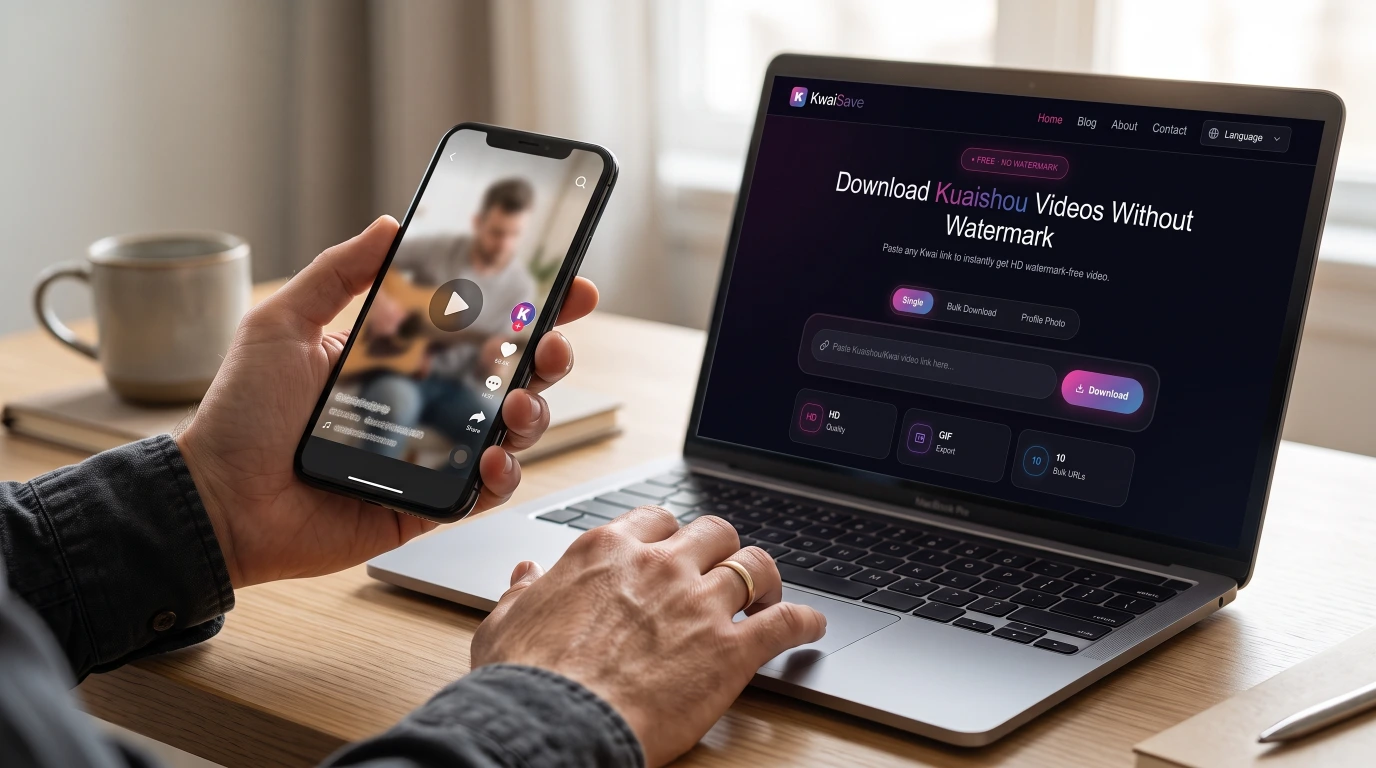
- Copy the video's link from Kuaishou or Kwai — the share button gives you the URL. (Whether it's a Kuaishou link or a Kwai one doesn't change anything here; more on that below.)
- Paste it into KwaiSave.
- Choose MP3 instead of the default MP4 option.
- Download the file. It saves as a standalone audio file — no video, no thumbnail, just the sound.
Choosing MP3 doesn't use up your one shot at the video, either — the format is picked per download, not locked in. If you decide you want the MP4 too, paste the same link again and choose that instead.
What You're Actually Getting
Worth being straightforward about this, because a few competing tools advertise things like "original quality" or a bare bitrate number (320kbps shows up on more than one rival page) without explaining what that number actually means in context: the audio in a Kuaishou or Kwai video is already compressed once before it ever reaches a converter, the same way almost every video platform compresses audio — typically as AAC, stored inside an M4A-style container as part of the video file. Converting that to MP3 is a second compression pass on top of the first, and a bitrate figure alone doesn't tell you that a second lossy pass already happened before it.
That's not unique to KwaiSave — it's how converting between any two lossy audio formats works. Each additional compression pass throws away a little more information than the last, a well-documented effect generally called generation loss, and it's why audio engineers generally avoid transcoding between lossy formats when it can be helped. In practice, for a short clip's dialogue, a sound effect, or a song played over a video, the difference is usually not something you'd notice by ear. It matters more if you're trying to get an audiophile-grade copy of a song — for that, the actual music release will always beat an MP3 pulled out of someone's video, no matter what bitrate the export claims.
KwaiSave doesn't publish an exact bitrate for its MP3 export, so this article won't invent one. If precise technical specs matter for your use case, that's worth confirming directly with the tool rather than trusting a number you saw somewhere else.
What the Extracted Audio Is Commonly Used For
A few recurring reasons come up more than others:
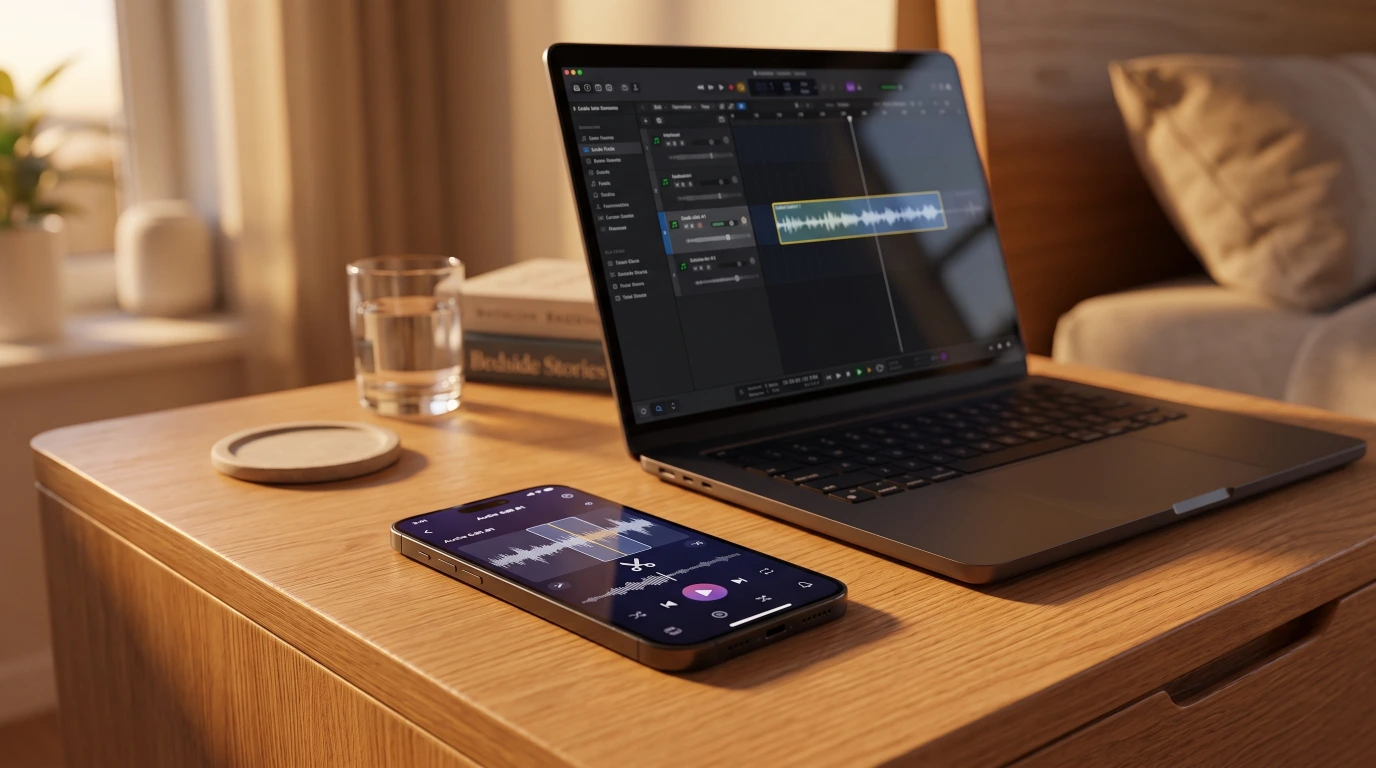
- Ringtones. The MP3 comes out as the full clip, so you'd trim it down afterward — most phones have a built-in way to set a custom ringtone from an audio file, or a short clip can be trimmed first in a basic audio editor.
- Editing projects. Pulling just the audio is faster than importing a whole video into something like CapCut or another editor when all you actually need is the sound bite or background track.
- Listening without the video. Saving a song or a bit of dialogue as its own file means you're not re-opening the original video (or re-downloading it) every time you want to hear it again.

None of these require anything beyond the MP3 file itself — they're just the common reasons someone reaches for audio-only in the first place.
Kuaishou or Kwai — Does It Matter?
No, not for this. Kuaishou is the original Chinese app; Kwai is the same underlying platform under international branding. KwaiSave's MP3 extraction doesn't change based on which one the link came from — see Kuaishou vs. Kwai: Same App or Two Different Things? if you want the fuller breakdown.
On Phone or Computer
The process is identical either way — paste a link, pick MP3, download — since KwaiSave runs in the browser rather than as an installed app. The only thing that changes by device is how you copy the link in the first place and where the downloaded file ends up. KwaiSave's device guides cover that part in more detail: downloading Kwai videos on iPhone and downloading Kuaishou videos on Android. On a computer, there's nothing extra to account for — copy the link from the browser version of Kuaishou or Kwai and paste it in the same way (the PC and Mac guide walks through it if you want it spelled out).
Is This Allowed?
Extracting audio for personal use — keeping a song you liked, saving a sound bite to listen to later — is the same situation as downloading the video would be. It gets more complicated if you're planning to repost the audio somewhere, use it commercially, or pass it off as your own: that depends on who owns the original content, not on the fact that it went through an MP3 converter. KwaiSave's terms of service covers the site's own usage terms if you want the specifics.
If Something Doesn't Work

What happens if the video doesn't have an audio track?
Some clips are silent by design — there's nothing to extract in that case. That's true of any tool working from the same source, not a KwaiSave-specific limitation.
What happens if the source video has been deleted or made private?
Nothing to pull from. If the original is no longer publicly accessible, the link doesn't have anything left behind it — same as it would be for a regular video download.
What happens if I pasted the wrong kind of link?
A profile or channel link won't produce anything — it needs to be the individual video's share link specifically. Re-copy it from the video's own share button rather than the address bar or a profile page.
Extract the Audio From a Kuaishou Video
Paste a Kuaishou or Kwai link, choose MP3, and download the audio-only file — free, in your browser, no app or login.
Open Free Downloader →Common Questions
About the Author: Mehtab Ahmed
Mehtab Ahmed is the founder of KwaiSave and a web developer with 6+ years of experience building browser-based media tools. Based in Lahore, Pakistan, he writes about social media platforms, content creation, and digital tools.